Create shortcut (long-press number key "123") or dedicated top bar option to switch to num keypad
What would you like?
Ability to switch to a full num pad with a dedicated button instead of having to go back and forth between the number in the top. .
This could be done either double tapping the number key in the bottom left corner or a dedicated num pad switch in the top row. (or both)
Why it would help
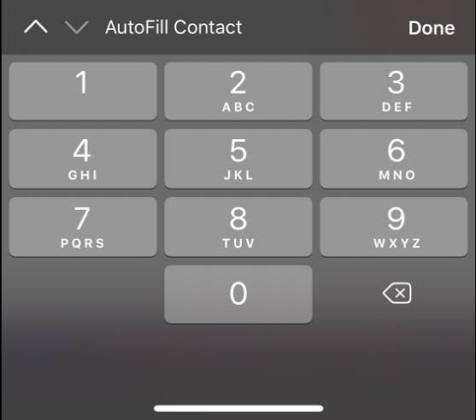
Typing number via the top row has always frustrated me, because it's much more tedious to type a number e.g. 393757599 via the row because you have to go back and forth between the number, instead of having a num pad show (see attached screen), which is much faste.
Added benefit would be the increased screen real estate, freeing up the top row for those who prefer to have full num pad.
Discussion
Sign in to comment or vote.
Just to be sure, the permantly displayed number row doesn't work for you? You can just keep on typing, going back and forth isn't needed.
I know the permeant number row exists. However, typing in numbers via numpad is so much faster (instead of typing 1 go al the way to 8 back to 2,...). I believe EFkey already has shortcuts that you can set for the 123 key e.g. emoji, settings etc. Adding one for the numpad would be a game changer as I have not seen one single keyboard that has this.
An idea to add to that then, an option to have math symbols there as well, + - * /, maybe ( ) ?
A pain for me is always, when I want to do addition and I have to switch back and forth between first and second symbols page (stupid iOS symbols layout, but which I'm stuck with because muscle memory...)
Maybe the numpad could have those + - * /, ( ) symbols on them instead ot the letters if you long press them. I doubt anybody types T9 on the numpad anymore. Two birds with one stone....
@efkey this is coming in 2.2.1, the next App Store update. Hold "123" and pick 🔢 (add it under Actions on "123"), or switch on "Number pad" in Customize the toolbar, that one is free. It's a big 1–9 grid with + - * / on the sides and ( ) = on long-press, it stays up through spaces and operators until you tap ABC, which also covers what @muleluku asked for.
Thanks for this. It makes life so much better.
Small improvement/nitpick: The current emoji feels a bit out of place. Ideally, it could be replaced with a more consistent / white icon (I'm sure SF Symbol has one).
This shortcut to bring up a number key pad is a good idea; double tapping the num key is how it should be done.
This is awesome!
Few details:
D123/
_456*
E789-
A0,=+
D…delete
_…space
E…enter
A…ABC
If @efko adds a full key customization at some point, I think that would alleviate a lot "oh I want this key to go here, not there"....The num pad now is soooooo much better 🥰
first of all, great feature. Never knew I thought is was that useful.
If the COMMA key gets just 1 extra action, the COMMA key shows the icon of that action, eg a gear or an emoji. On the 123 key, the three dots are always shown. We should make this consistent I believe.
Then, when both show 3 dots, so the comma and 123, the 3 dots show on the left side of the world 123 button but on the right side of the COMMA button. Is that on purpose? Just a design check.
About the icon we should def change it indeed
@muleluku all five are in build 467 (and 2.2.2 on the App Store). The layout is exactly your proposal: delete, space, enter and ABC on the left, / * - + in one column on the right, and = next to +. Holding = shows ( ) % in order, the 🔢 action uses an outline icon like the others, the bar on the numpad only shows the calculator result, and the emoji row set to "on symbols" no longer appears there.
hey! is it in build 467 or 469? I have 467 and I think it does work here, but the task is tagged as "fixed in build 469", so I can't vote it as fixed.
This number pad function is a godsend. Super useful.
2 things from my part
For point 2, secondary symbols are displayed when long press hints are enabled in the settings as shown in the screenshot.
Thanks. With the calculator id like to have the secondary keys but with the default key certainly not. Should we put this as separate option?
That’s for @efko to review. Changing the status accordingly.
For point 1, the alignment seems fine when we select Actions instead of Default under Long-press comma. It looks like the alignment takes a hit when the comma key needs to display 2 corner icons.
You're right! Measured it!
@Ed @ilikered the two icons on the comma sat 2 points higher than the single icon on 123, so with one action it looked fine. Fixed for build 468 (2.2.2 on the App Store): the icons line up, and the numpad now always shows its long-press hints, even with hints turned off for the letters. "=" shows "()" in the corner, since that's what's hiding there.
Alignment when there are two symbols on comma looks good to me. Also, the number pad is showing the long press icons even when the setting is none.
However, in the number pad, the percentage symbol is present at two places as the secondary symbol, one on the / and another on the =.
Could you just double check the position of the icons vs displaying a slash? The slash now almost touches the icons on top. Was that already the case? Just soon in on the picture I attached, I guess / needs to come down a bit, just as 123
Great work. Feedback:
Long press: does the enlarged button size when long pressing the right design?
Long press - shows emdashes. It's potato potato I guess so do we need long press there?
Should we, with long press, actually show the original sign as well? I don't think so. We don't do that on in the keyboard itself with long press on a number, the comma, the dot. So perhaps we shouldn't do it in here for consistency reasons
comment deleted
@ilikered "%" sat on both "/" and "=" because I added it to "=" with the brackets and never took it off "/". Fixed for build 469 (2.2.2 on the App Store): holding "/" now only offers "÷", and "%" lives under "=" next to ( ).
Percentage looks good now. Few more things.